Letting 1Password run your SSH agent is neat! It’ll hold your keys, and prompt you to authorise each use pretty seamlessly with your password or thumbprint.
For the use case we’ll be talking about here, we can use it as a git commit signer. For me, this was way easier than the setup I had before: No GPG, no having to add an ssh-agent call to your shell’s startup prompt, and having to type a password to use a protected key every single time and so on.
This is how it’s done…
Enable the 1Password SSH Agent
Open 1Password’s settings:
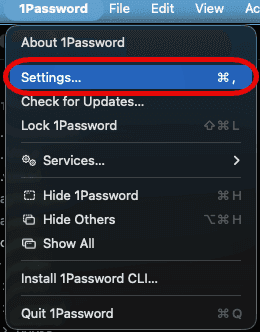
Then look at the Developer section for the SSH Agent setting:
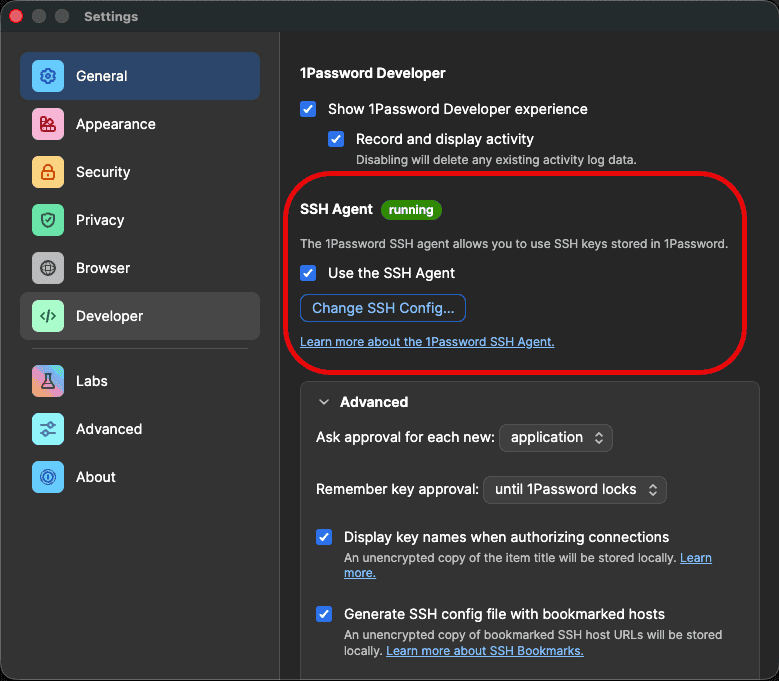
If it says running next to SSH Agent, you’re golden!
Get (or Create) an SSH Key
Two options here:
- Generate one inside 1Password (my preferred): in 1Password, create a new SSH Key item and let 1Password generate the key pair for you. The private key never touches disk, it lives in the vault. This is the cleanest option if you’re going all-in on 1Password.
- Use a key that’s already on disk: you probably already have one at
~/.ssh/id_ed25519.pub. If you don’t,ssh-keygen -t ed25519will sort you out. You can then drag the private key into 1Password after the fact, or just leave it where it is and let 1Password’s agent pick it up.
Either way, grab the public key (1Password has a “Copy public key” action on the item; for a disk key it’s just the contents of the .pub file) and add a new signing key on GitHub.
Important bit: click the Key Type dropdown and pick Signing Key, not Authentication Key:
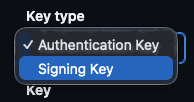
(It’s the same key material, different role here)
.gitconfig Setup
There are two ways to wire this up: let 1Password generate the config for you (what I do), or write it by hand.
Option 1: Let 1Password Generate It
Open the SSH Key item in 1Password and hit the “Configure Git Commit Signing” option. It writes a file to ~/.config/1password/gitconfig that looks roughly like:
[user]
    email = you@users.noreply.github.com
    name = Your Name
    signingkey = ssh-ed25519 AAAAC3Nz... your-key-comment
[gpg]
    format = ssh
[gpg "ssh"]
    program = "/Applications/1Password.app/Contents/MacOS/op-ssh-sign"
[commit]
    gpgsign = true
[tag]
    forceSignAnnotated = true
    gpgsign = true
Then pull it into your main ~/.gitconfig via an include:
[include]
    path = ~/.config/1password/gitconfig
The magic line is gpg.ssh.program. op-ssh-sign is 1Password’s signing helper, and it’s what lets git sign commits without ever pulling the private key out of the vault.
Option 2: Do It By Hand
If you’d rather keep everything in one file, drop this into ~/.gitconfig directly:
[user]
    email = <your email>
    name = <your name>
    signingkey = ~/.ssh/id_ed25519.pub
[commit]
    gpgsign = true
[tag]
    forceSignAnnotated = true
    gpgsign = true
[gpg]
    format = ssh
[gpg "ssh"]
    program = "/Applications/1Password.app/Contents/MacOS/op-ssh-sign"
signingkey: git accepts either a path to a public key file (what’s shown above), or the literal public key prefixed with key:: (like key::ssh-ed25519 AAAA...). If you look at the file 1Password generates, it uses the raw ssh-ed25519 AAAA... form with no prefix, which also works. The git docs call that form deprecated but it’s still tolerated for backward compat, hence 1Password’s choice.
For the email, I’ve switched to using the GitHub noreply option. For me that’s petems@users.noreply.github.com, but they’ve recently added an option to hide your email address completely as well:

Push a test commit somewhere and check for the little Verified badge next to it on GitHub:

Boom, done!
Troubleshooting
If it doesn’t seem to be signing, run:
git log --show-signature -1
If you get error: gpg.ssh.allowedSignersFile needs to be configured and exist for ssh signature verification, create ~/.config/git/allowed_signers with a line like:
your-email ssh-public-key-name ssh-public-key
Then tell git about it:
git config --global gpg.ssh.allowedSignersFile ~/.config/git/allowed_signers
That should fix it!
Bonus: Use 1Password as Your Full SSH Agent
Strictly, you don’t need this bit for commit signing. The op-ssh-sign helper we set up in the .gitconfig talks to 1Password directly, it doesn’t read SSH_AUTH_SOCK at all. 1Password’s docs say so themselves:
Set
gpg.ssh.programto the SSH signer binary provided by 1Password, so you don’t have to setSSH_AUTH_SOCKyourself.
So if all you want is signed commits, you can stop reading now.
But most of us use SSH for plenty of other things: ssh user@host, pushing over git+ssh, GUI SSH clients like Termius, forwarding an agent into a dev container or a remote VM. All of those read SSH_AUTH_SOCK to find an agent. Point that variable at the 1Password socket and those tools transparently use your 1Password-held keys too, with the same authorise-with-Touch-ID prompt you get for commits.
1Password’s docs have a LaunchAgent plist that wires it up on boot:
mkdir -p ~/Library/LaunchAgents
cat << EOF > ~/Library/LaunchAgents/com.1password.SSH_AUTH_SOCK.plist
<?xml version="1.0" encoding="UTF-8"?>
<!DOCTYPE plist PUBLIC "-//Apple//DTD PLIST 1.0//EN" "http://www.apple.com/DTDs/PropertyList-1.0.dtd">
<plist version="1.0">
<dict>
  <key>Label</key>
  <string>com.1password.SSH_AUTH_SOCK</string>
  <key>ProgramArguments</key>
  <array>
    <string>/bin/sh</string>
    <string>-c</string>
    <string>/bin/ln -sf \$HOME/Library/Group\ Containers/2BUA8C4S2C.com.1password/t/agent.sock \$SSH_AUTH_SOCK</string>
  </array>
  <key>RunAtLoad</key>
  <true/>
</dict>
</plist>
EOF
launchctl load -w ~/Library/LaunchAgents/com.1password.SSH_AUTH_SOCK.plist
References
GitHub Docs
1Password
- Sign Git commits with SSH (1Password Developer docs)
- Sign your Git commits with 1Password (1Password blog, Sep 2022)